Property inspector
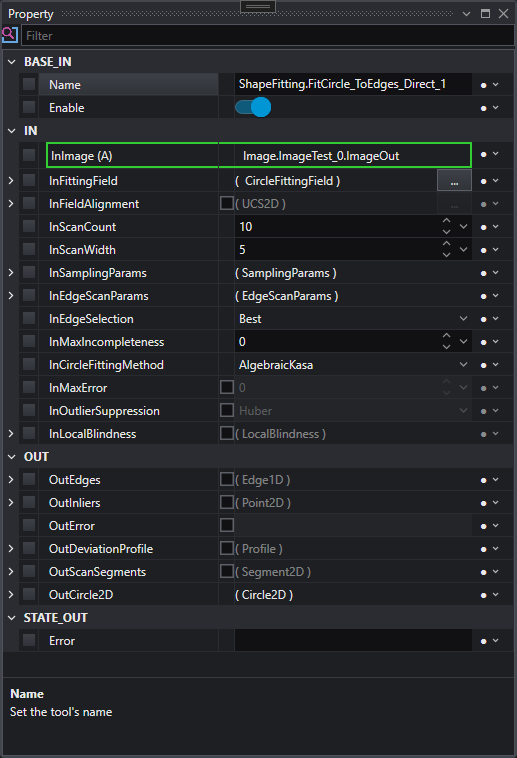
The property panel displays all the options and properties of a selected tool.
Properties are usually divided into four categories:
- BASE_IN: Contains basics attributes such as the Enabled/Disabled value and the name of this tool object.
- IN: Contains those values that needs to be specified for its operation (for example a dimension or another object to link).
- OUT: Contains all the values and the object given as output.
- STATE_OUT: Contains the state of the output. It should be blank, but it could contain a possible error occurred during the execution of the project. Further details on the error are logged in the Output panel.
For macros, the IN and OUT properties are replaced by IN_DYNAMIC and OUT_DYNAMIC which can be linked to the macro's input and output variables.
In the case of a linkable property, it will be possible to create a link with an existing object by clicking on the rightmost drop down menu and then selecting an available property. Read more on linking properties.
Note that a property could contain structured data: click the arrow to the left of the property to expand its contents.
Linking
When a property has been linked, a green rectangle will surround the property.
When a property has the "(A)" symbol next to its name, it means that the property will be automatically linked to the first compatible value (if existing).
If a linked property is being automatically converted by the linker, a yellow rectangle will surround the property
If a linked property is triggering vectorization, an array icon will be shown next to the property name
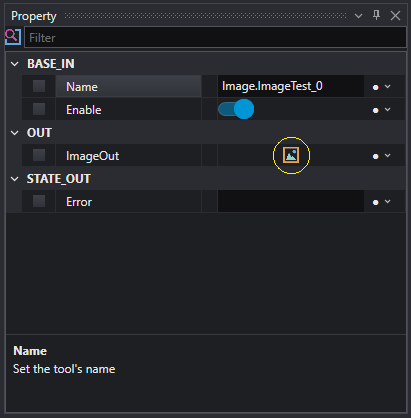
All the properties can be dragged and dropped into the Preview area in order to show a preview of their values.
The properties that present an icon in the value column (circled in the example above) are the those that can have a graphical 2D representation if placed on the Preview area.
All the properties can be added to the Debug watch simply by dragging and dropping them.
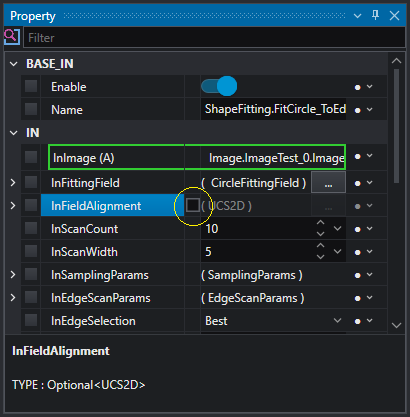
Some properties can be optional for the execution of the tool. If this is the case, they can be enabled by checking the relative CheckBox.
Info
Optional input properties are set to a default value if disabled.
Tip
Enabling optional output properties of a tool can sometimes slow down its execution. Optional outputs are computed only on request.