License Upgrade
Note
Follow this procedure also if you purchased any of the available add-ons and you just received your hardware license key.
OEVIS® hardware licenses implement a version lock. Every new minor or major release, Opto Engineering will automatically release hardware key update files if your OEVIS-EXT subscription is active and/or renewed.
In order to obtain the license update files, log on to the customer portal and access to the OEVIS® page. In the bottom section of the page you can find all the licensing information regarding your OEVIS purchases. From this list, you can access and download the upgrade files.
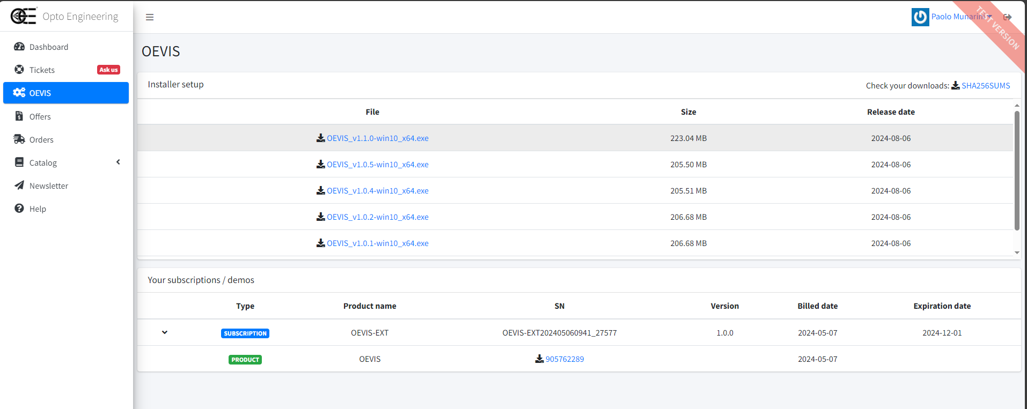
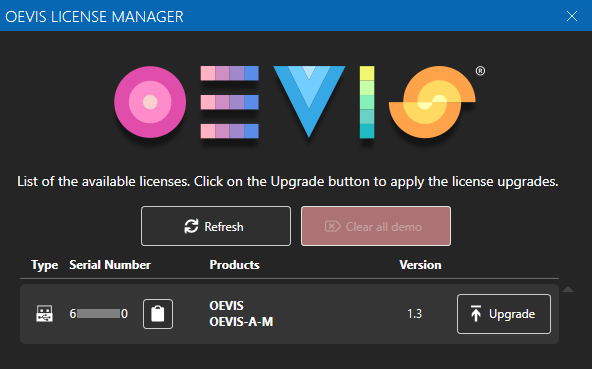
In order to select the correct license upgrade file you have to Launch the OEVIS® License Manager application, which is located in your current OEVIS® installation folder, under the bin/Tools directory, or available also on your Start menu.
Connect the hardware license key that you want to upgrade and note its serial number. You can also copy the serial number to the clipboard with the dedicated button.
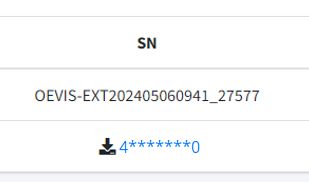
Go back to the customer portal and download the correct license upgrade file, by clicking on the correct serial number. You will obtain a .V2CP file, named with the serial number of the key.
Lastly, press the Upgrade button on the OEVIS® License Manager and select the file you just downloaded. Your license will be updated accordingly.