Data Classification Model Editor
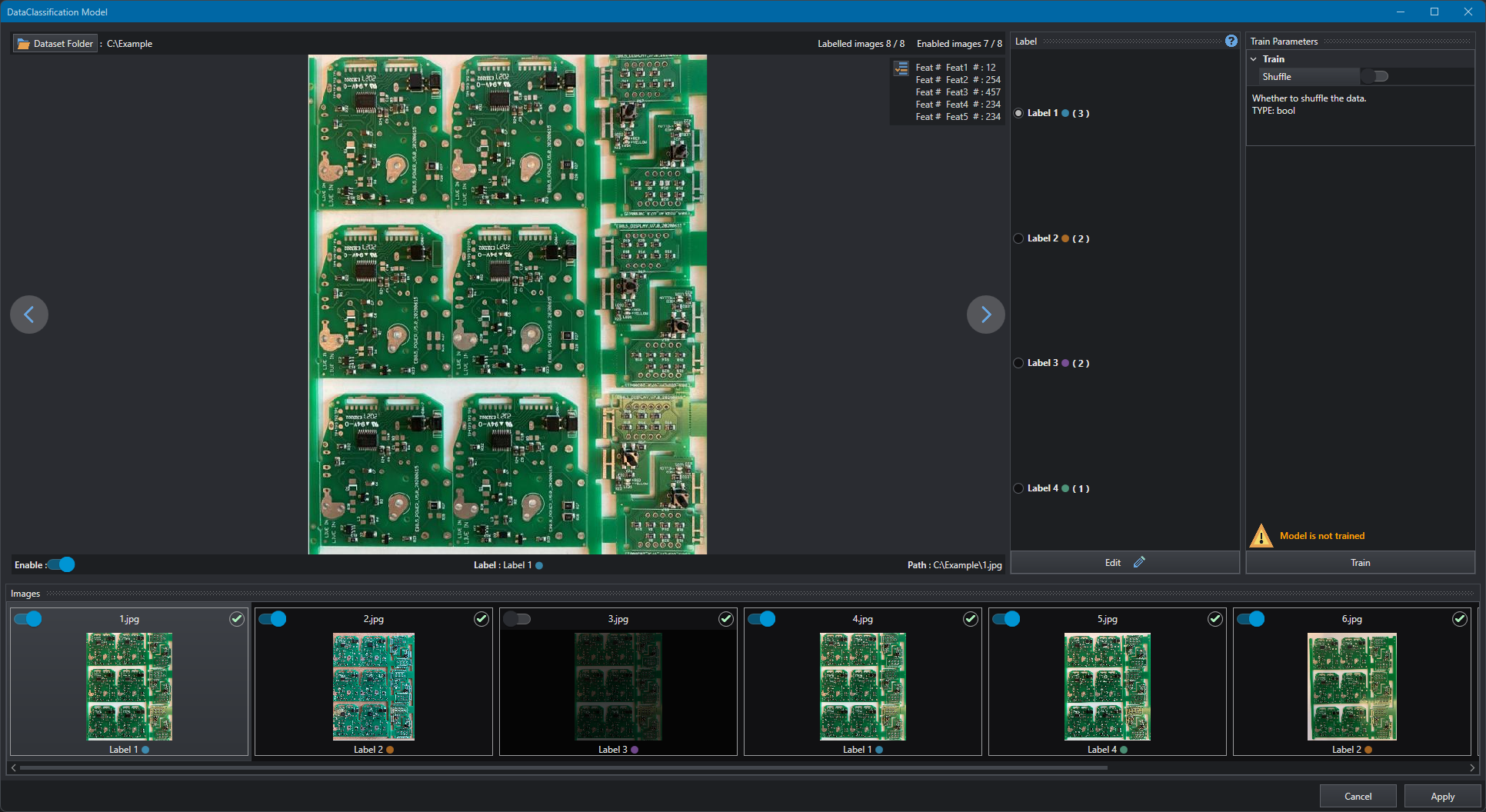
The Data Classification Model Editor is designed to simplify the training of a data classification model that is going to be used inside the project, this is done loading a set of images and all their features and by assigning a label to each image, then a dataset is created and the model is trained. To train a data classification model a folder containing images and a file with their feature is necessary. This can be created by using the tool SaveFeatureToDataset.
The training GUI is split in 4 parts:
- Viewer (1)
- Label selector (2)
- Train Parameters (3)
- Images list (4)
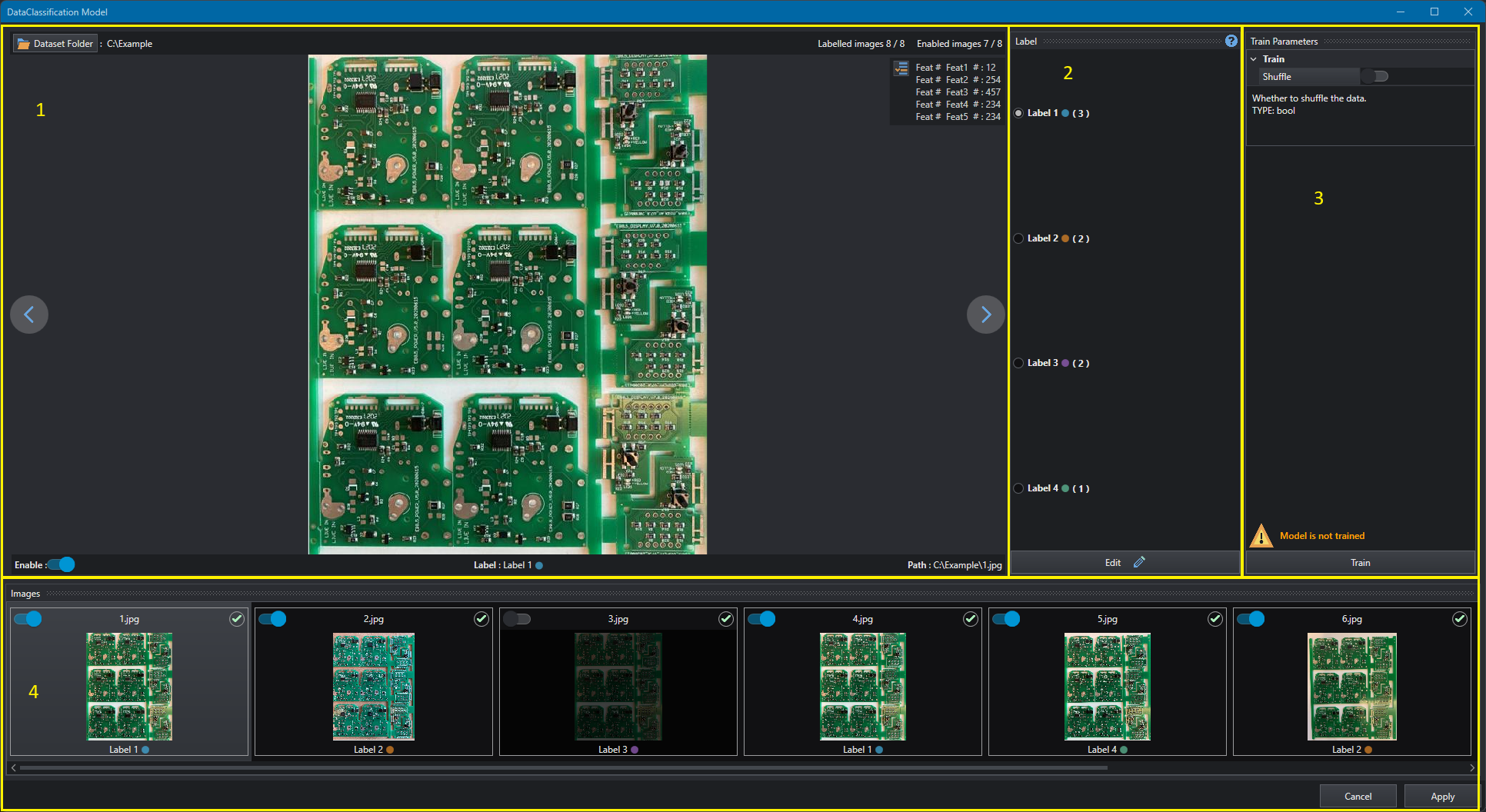
Viewer
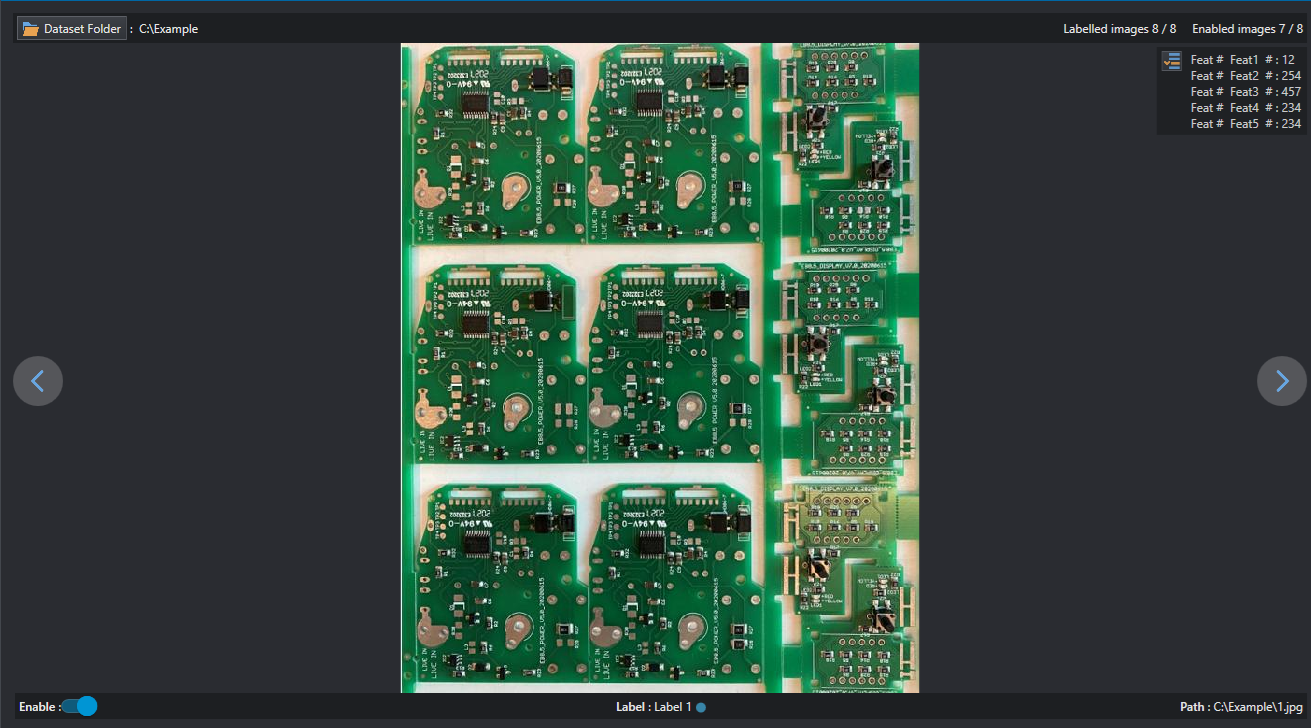
This GUI section can be described by splitting it in 3 main sections:
- Top row: on the left there is a button to select a folder containing the training files (images and features file), near to this the current working path is displayed. on the right there are information about how many images of the dataset have an assigned label and how many images are currently enabled.
- Central row: this is the main section, here the currently selected image is displayed, there are arrows on the left and on the right that can be used to navigate to the next or the previous image, at the top right corner there is a collapsable section that shows the feature values and name (if the training file has an header with the feature names) related to that image.
- Bottom row: on the left there is a switch that changes the enable of the current image, in the center there is the assigned label and on the right there is the absolute path of the image.
Warning
When an image is not enabled it is visualized with a dark layer over and it is not considered when the actual train starts.
Label selector
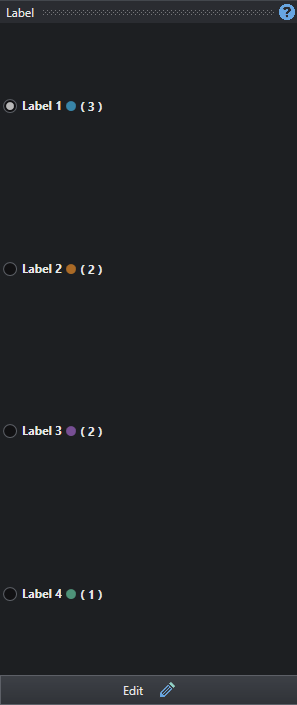
This section is used to assign a label to the current image. On the bottom there is a button that is used to edit the labels list, it opens the labels editor.
Note
Once the labels are created you can use a shortcut to select one by using the keyboard numbers: by pressing the key 1 the first label is selected, by pressing 2 the second and so on.
When the edit button is pressed the labels editor will show.
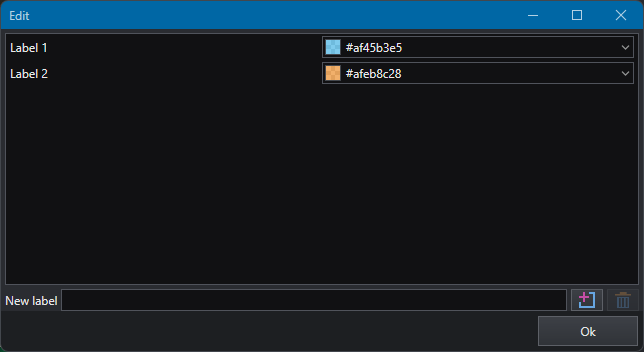
This editor is designed to manage labels: to add, edit color or delete. This control is composed by:
- A main section where the existing labels are listed, from this section you can assign a custom color to each label
- A field to insert the name of a new label
- A button to add this new label to the list
- A button to delete the currently selected item
Note
When creating a new label you can confirm it by pressing the enter key on keyboard.
Train Parameters
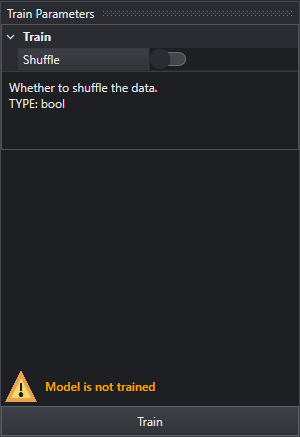
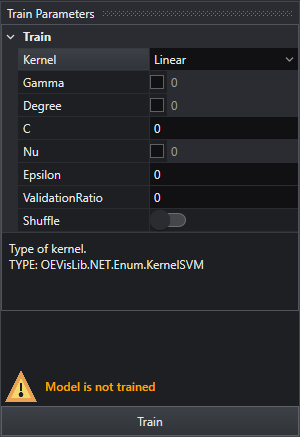
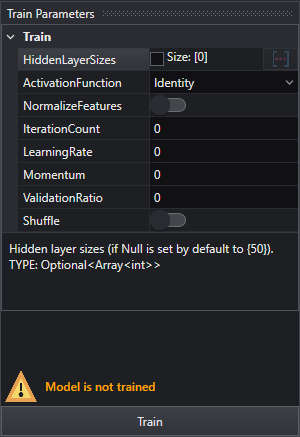
This bar can be used to change parameters for model training and by using the training button to trigger the actual train of the model. By selecting a single parameter its brief description is showed. The parameters changes according to the type of selected data classification model (KNN, SVM, MLP). Above the training button there is a label that gives information about the actual status of the model.
Images List

In this section of the editor it is possible to navigate through the images in order to label them. For every image a small thumbnail is displayed and some controls/information can be found:
- Toggle switch to enable/disable the selected image from the training set (Top left corner)
- Filename for the image (Top center)
- A tick icon if the image has an assigned label or an empty circle if is not (Top right corner)
- The assigned label (Bottom center)
Note
It is possible to switch image by using the Left and Right keys on the keyboard.