Demo Activation
Warning
Before activating a demo license, install the latest version of OEVIS®. Demo activation procedure will work only for versions 2.0 and greater. Contact our support in order to activate a demo for an older OEVIS® version.
Warning
Demo licenses can only be used while the PC is connected to the Internet.
After installing the software, log on to the portal. In the lower section of the OEVIS® page you will find all available licenses.

Click on the demo license activation button:
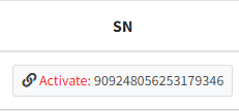
After clicking on the link, you will be prompted to open the OEVIS® License Manager application:

Confirm that you want launch the OEVIS® License Manager, which will launch and automatically prompt for the demo installation.
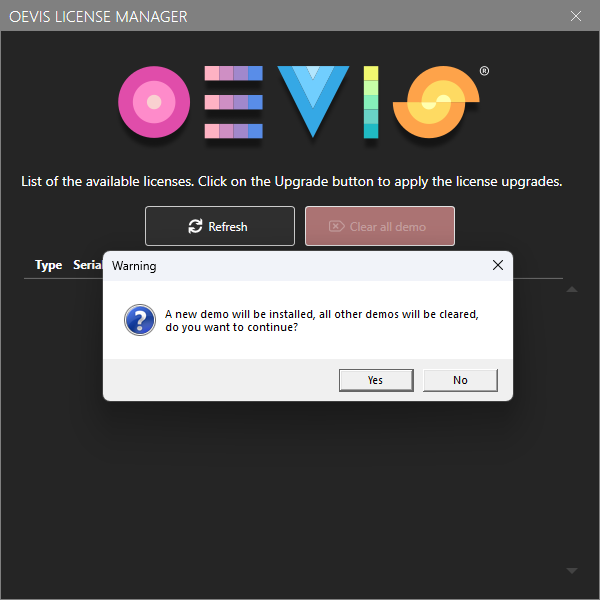
Activation will occur automatically after confirmation.
Note
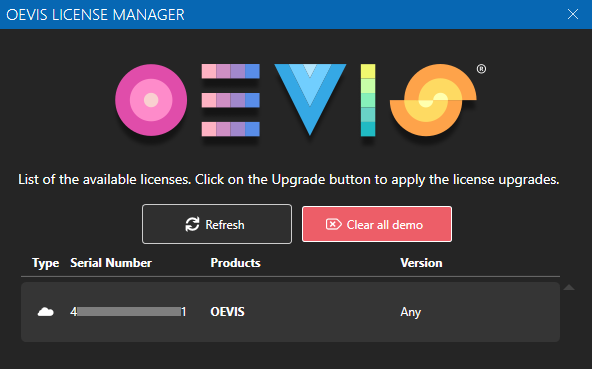
The demo key will not appear immediately on the key list in the OEVIS® License Manager. The communication with the licensing servers can take some time. Please wait a few minutes and manually refresh the list.
If the activation was successful, the key list should present the demo key entry, identified by the cloud icon.