Task Condition
This example shows ho to use condition to change the project's behaviour.
A Switch statement is used to select a blob from input image and has cases for values 1, 2 and default for others.
An If-Else statement is used to decide whetever the bounding rectangle of the selected blob should be rotate or not.
Switch
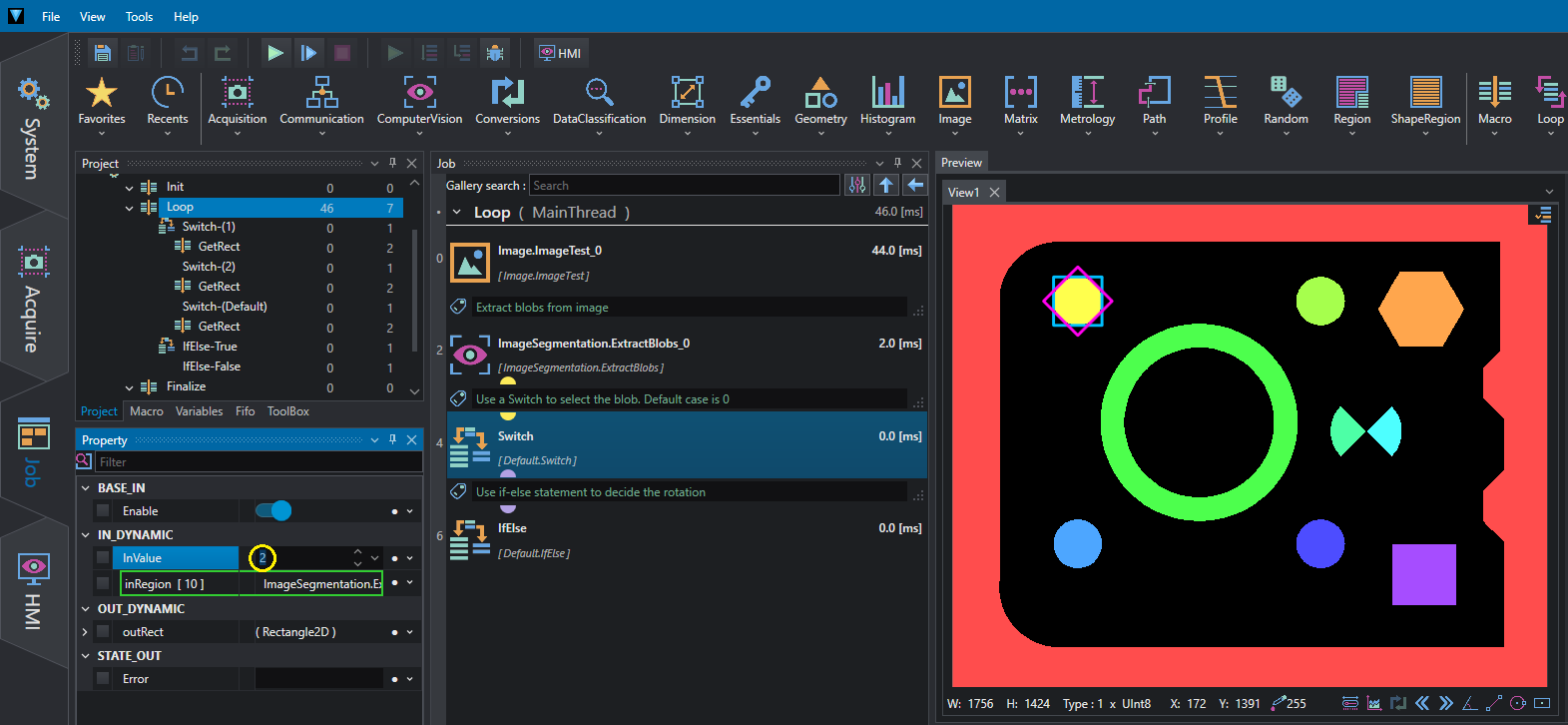
The Switch instruction always takes an InValue value from the IN_DYNAMIC input parameters, and based on this value, the relevant branches are executed. For example, if InValue=1, the tools (in this case, the GetRect macro) within Switch-(1) are executed; if InValue=2, the tools in Switch-(2) are executed, and so on. For all other InValue values not specified in the settings, the tools in Switch-(Default) are executed.
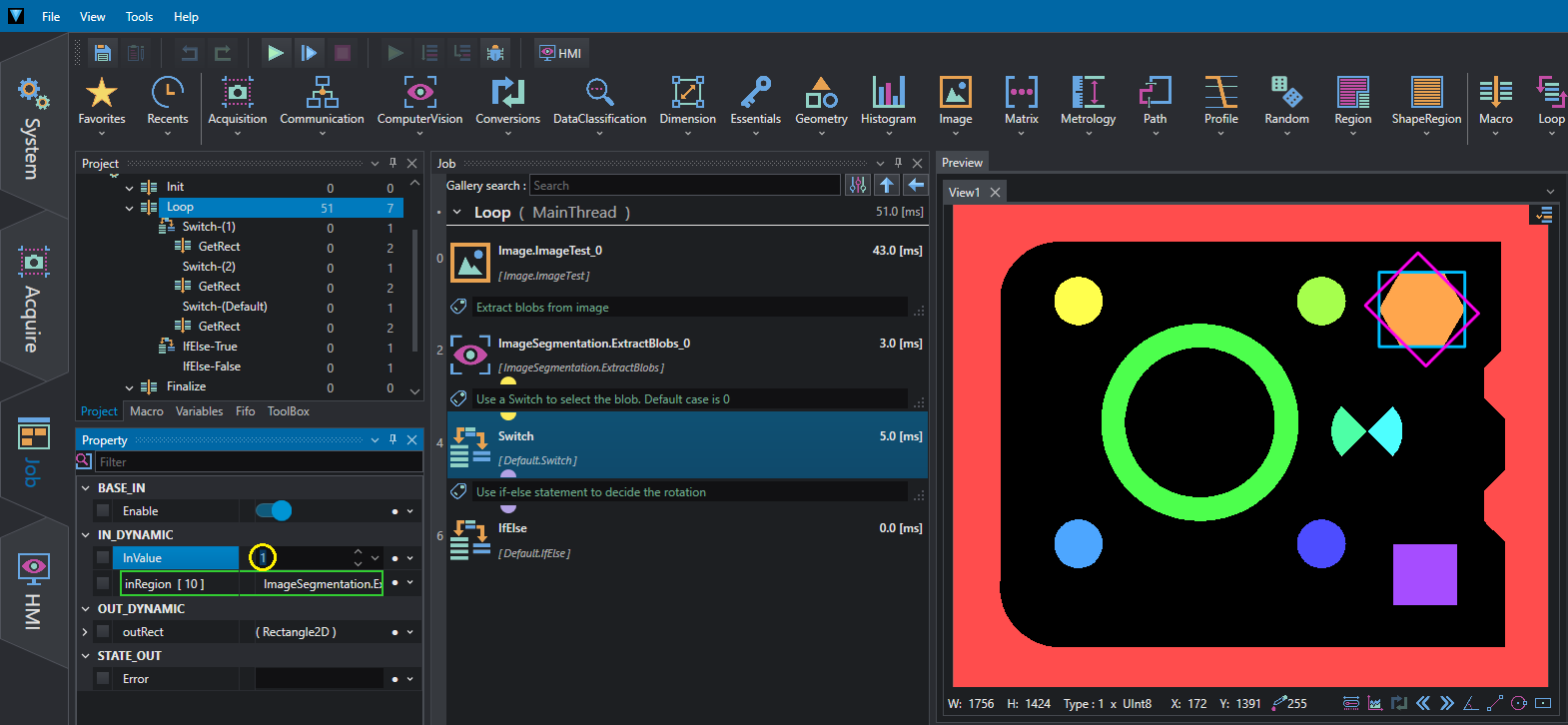
Put the project in Run mode and try changing the value of InValue to see how it behaves.
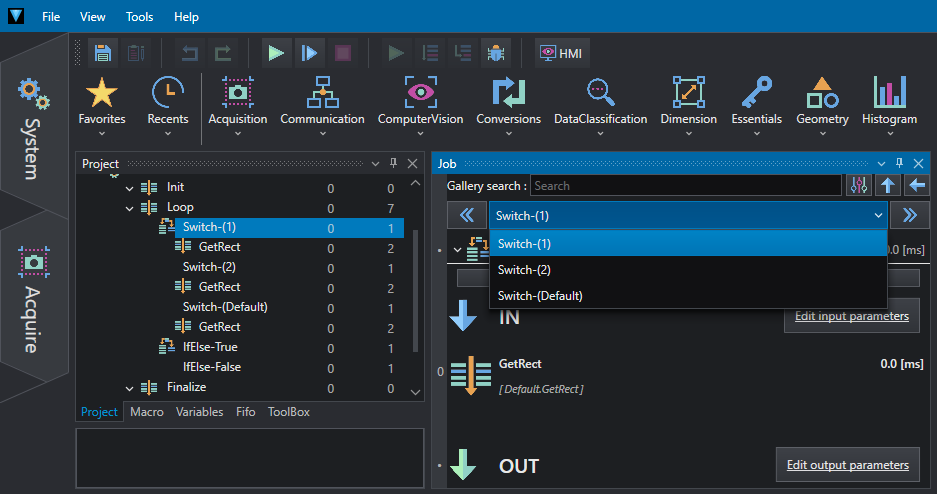
By double-clicking the Switch statement on Loop, you enter the various branches, which can also be easily selected using the arrows or the central drop-down list.
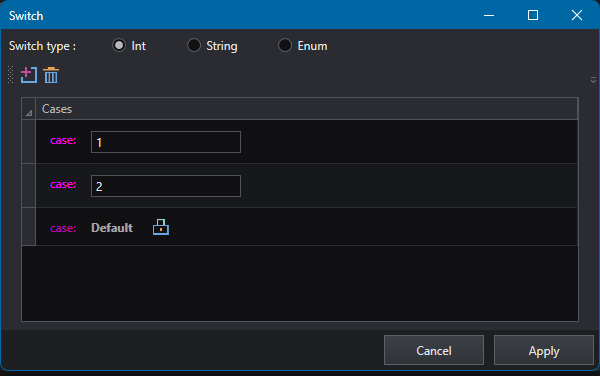
With Add/Remove case, you can add additional branches or remove existing ones.
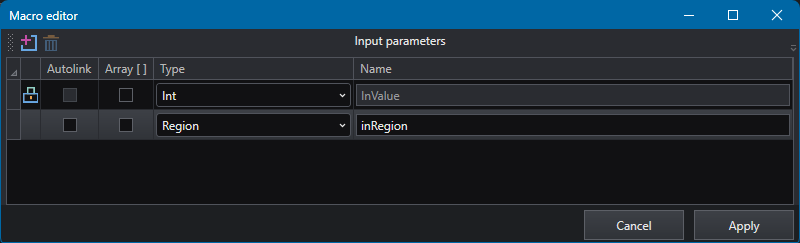
With Edit input/output parameters, you can add or remove input or output values to/from the Switch except for InValue.
If-Else
The IfElse statement can only execute two branches, true or false, depending on the value of IN InCondition. Put the project in Run mode and try changing the value of InCondition to see how it behaves.
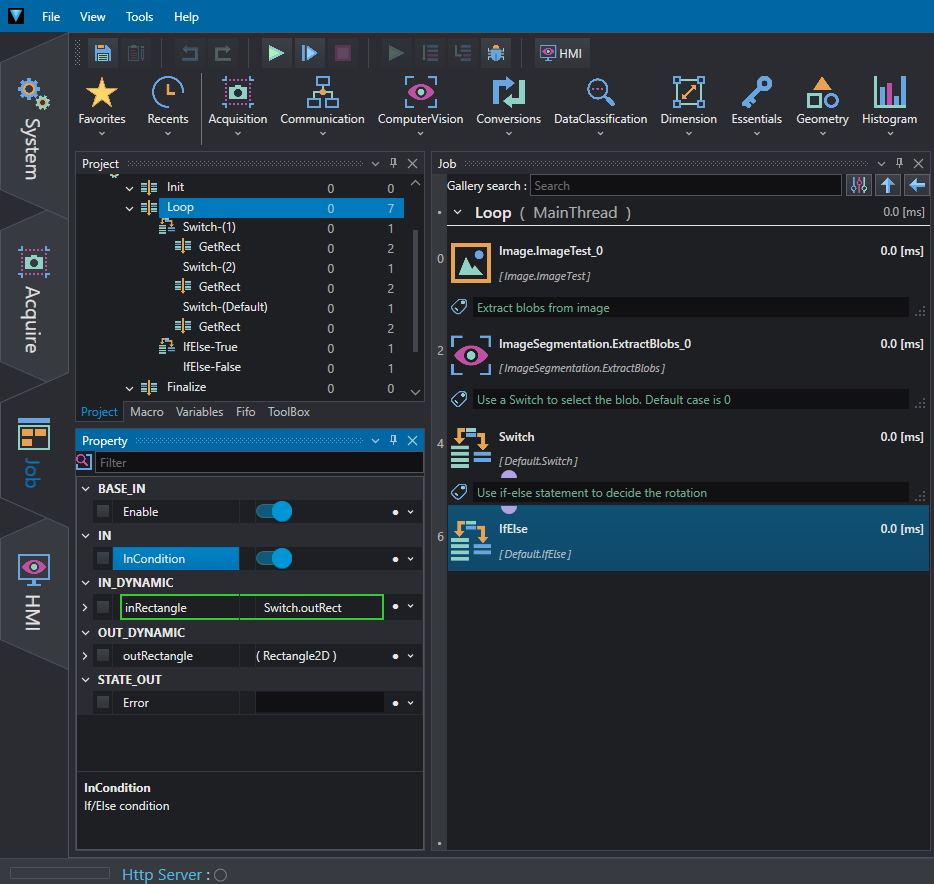
By double-clicking the IfElse statement on Loop, you enter the two branches, which can also be easily selected, using the arrows or the central drop-down list.
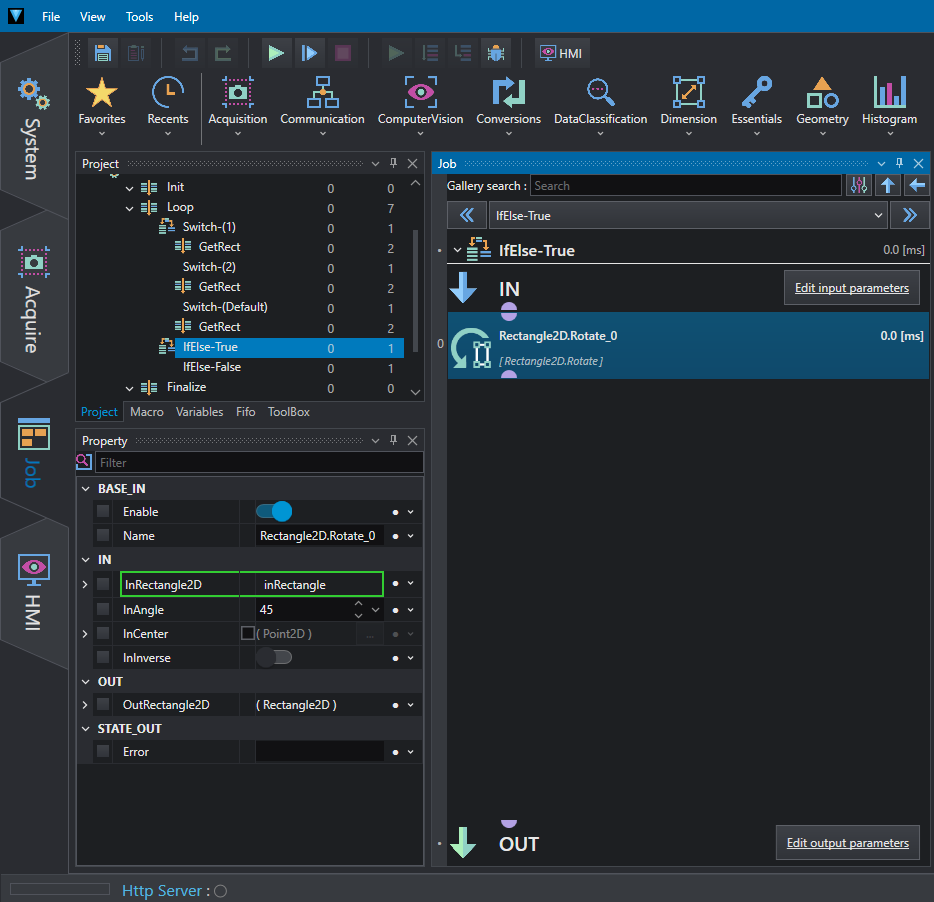
As with the Switch, with Edit input/output parameters, you can add or remove input or output values to/from the IfElse.