Job flowchart
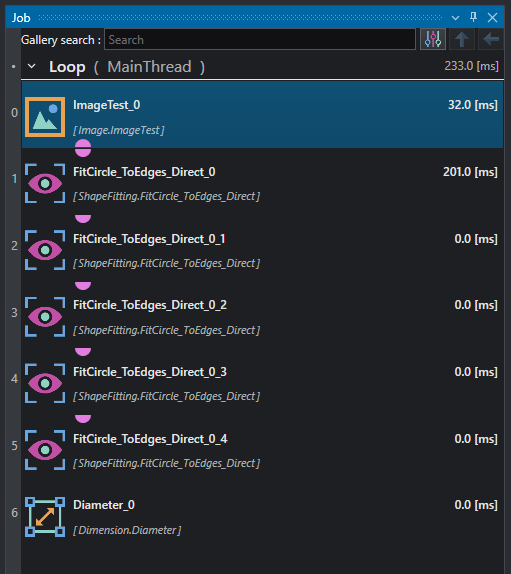
The Job panel shows all the tools that make up the program.
To add a tool, select it from the tool bar, or use the Gallery search if you know part of its name.
By using the two arrows at the top (
 ), you can respectively navigate back to the root of the main thread and go back to the previously visited section.
The tools are executed sequentially, in numerical order. You can drag and drop tools to change the order of execution. After the first run, next to each instruction the last execution time is shown.
Each tool can be standalone or linked to the previous/next tool. The resulting connection is highlighted by a circle cut in half, present at the bottom of the link source (output property) and at the top of the link destination (input property). The user can hover the half circle to obtain information on the link. If an output property is a link source for many input properties, the representation will show as one top half circle on the link source and many bottom half circles on the links destinations. For example, in the figure you can see how the ImageTest tool (row 0) is connected with all the following Shape fitting tools.
If two or more tools are linked and are rearranged with a drag and drop operation, some of the links may become invalid due to link direction inversion. A message is shown to the user and it is possible to break all the affected links or stop the rearrangement operation.
Clicking the right mouse button on a tool will show a context menu.
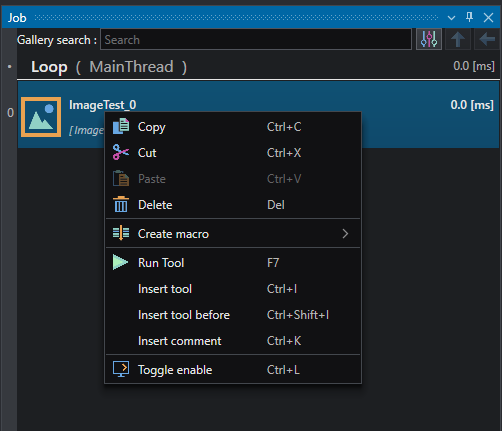
Here you can perform the following operations:
 — Ctrl+C : Copy selected tools
 — Ctrl+X : Cut selected tools
 — Ctrl+V : Paste copied tools
 — Del : Delete selected tool
 — F7 : Re-run the selected tools
- Ctrl+I : Insert tool after the selected tool
- Ctrl+Shift+I : Insert tool before the selected tool
- Ctrl+K : Insert comment above the selected tool
 — Ctrl+L : Enable/Disable the selected tools
Search Bar

The Search Bar helps the user find a tool by filtering all the gallery objects by name. Some special keywords can be used in order to filter the objects by an input or output type. These feature is described in detail in the Search Filter section. Search filter can be opened by pressing the button on the right of the search bar.
Search filter
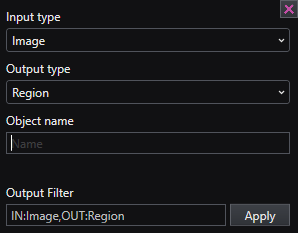
An example of search filter is shown in the figure. Three types of filter can be applied to the gallery objects:
- Input: user can write or choose from the dropdown a type of input that the filtered objects needs to have;
- Output: user can write or choose from the dropdown a type of output that the filtered objects needs to have;
- Name: user can write part of the object name;
The filter is composed in the bottom bar of the popup in the Output filter text box. By clicking on the button Apply the filter is applied and a list of the filtered objects is shown.
Direct syntax for applying filters on the gallery search can be one of the following:
IN:<Type>: search all tools that have<Type>as input typeOUT:<Type>: search all tools that have<Type>as output typeIN:<Type1>,OUT:<Type2>: search all tools that have<Type1>as input type and<Type2>as output type
Tool special attributes
When a tool is added to current task flow, some special icons can be displayed to represent particular attributes and/or states for specific tool, as described in the following sections.
Mandatory inputs

Some inputs are missing or they are not inserted from user. The tool can be executed but it can fails if not correctly set.
Vectorized execution

The vectorized execution is triggered when multiple values are linked to a single input (ex. an output of type array<float> is linked to an input of type float). In this case the tool is executed for each value.
Conditional execution

Some tools can produce a Nullable value and if it is linked to an input that doesn't accept Nullable types the execution of the tool becomes conditional, which means that if the input is null the execution is skipped, if it has value the execution is processed as normal.
Note
In case a struct type is linked the conditional execution is skipped if any parameter in the struct is Null.
In place tool

Tools which have 'In-Place' attribute modify the input parameter directly and they return it as output