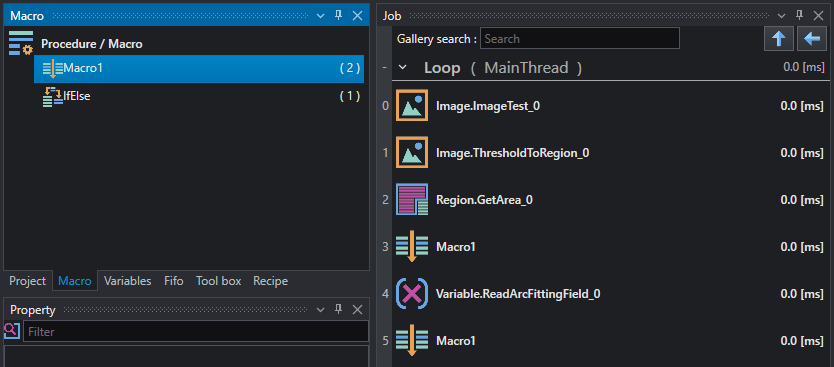
Macro
Macros are groups of tools that can be executed and invoked in multiple points inside the project. Typically they are used to handle repetitive and reusable logic and are very useful to keep your code clean.
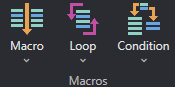
The term Macro includes different types of elements, all of which can be created from the toolbar:
-
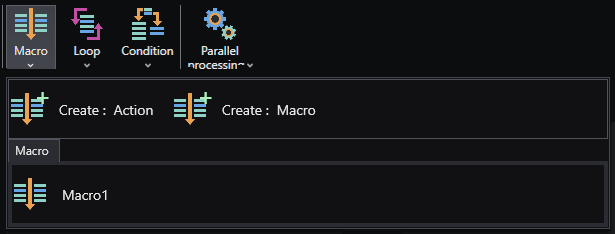
 — Macro: includes Macro and Action. Both items are list of tools, but while Macros can define input and output parameters, Actions are invoked without parameters and cannot return any result. For this reason, Actions are typically used from HMI with Button control to handle click events.
 -
 — Loop: includes For and While. Like Macros, Loops are made of a list of tools that can accept input and output parameters; the execution of the tools is in this case iterated based on loop type and calling tool parameters.For example, For allows to iterate the function N times where the iteration is controlled by index range defined by the caller,instead While is iterated until the input condition in the caller is true.
 -
 — Condition: includes IfElse and Switch. Unlike the first two groups, where only one list of tools can be defined, Conditions allow to define multiple lists for each condition. In IfElse a sequence of tools can be defined for both True and False conditions. For Switch the user can define a list of cases and each case will execute a different sequence of tools.
To create a macro, open the module in the toolbar and select the desired macro type; the macro is inserted directly in the Job and the corresponding item is displayed in the Project tab.
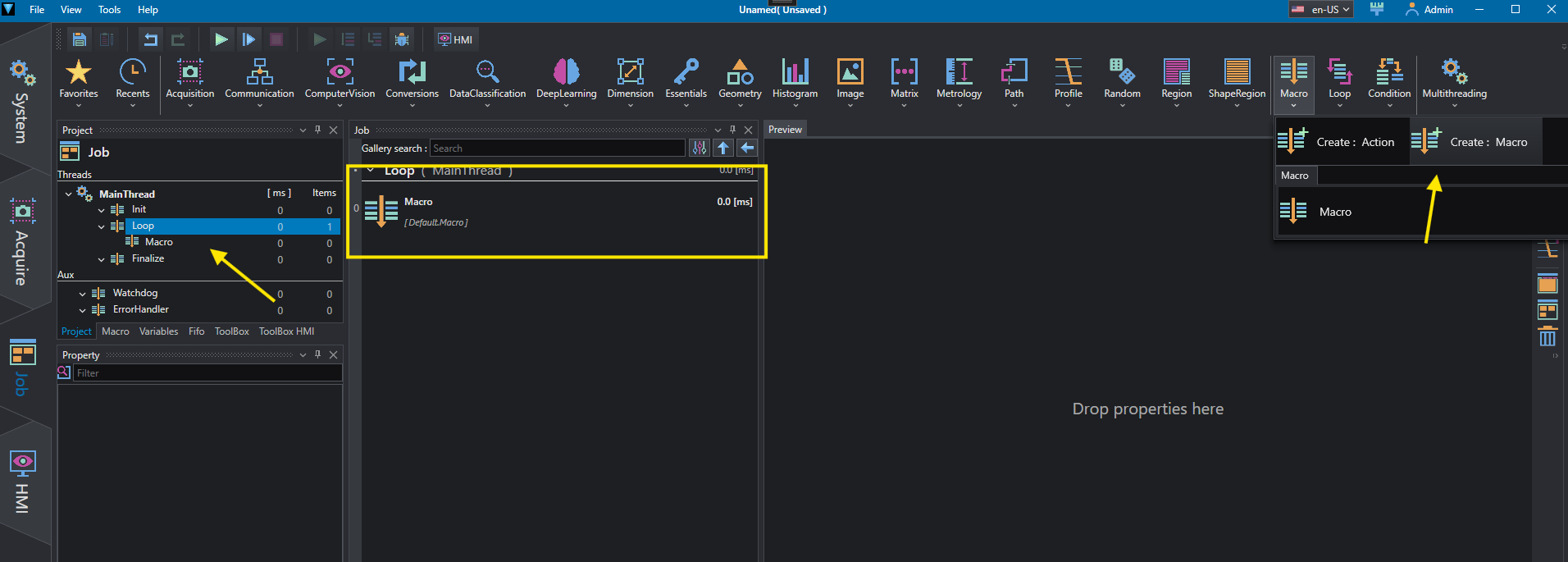
The created tool in the Job is the calling tool of the macro. To enter the macro and edit it, double click on any of its instances on the job list or select it from the Project explorer tab.
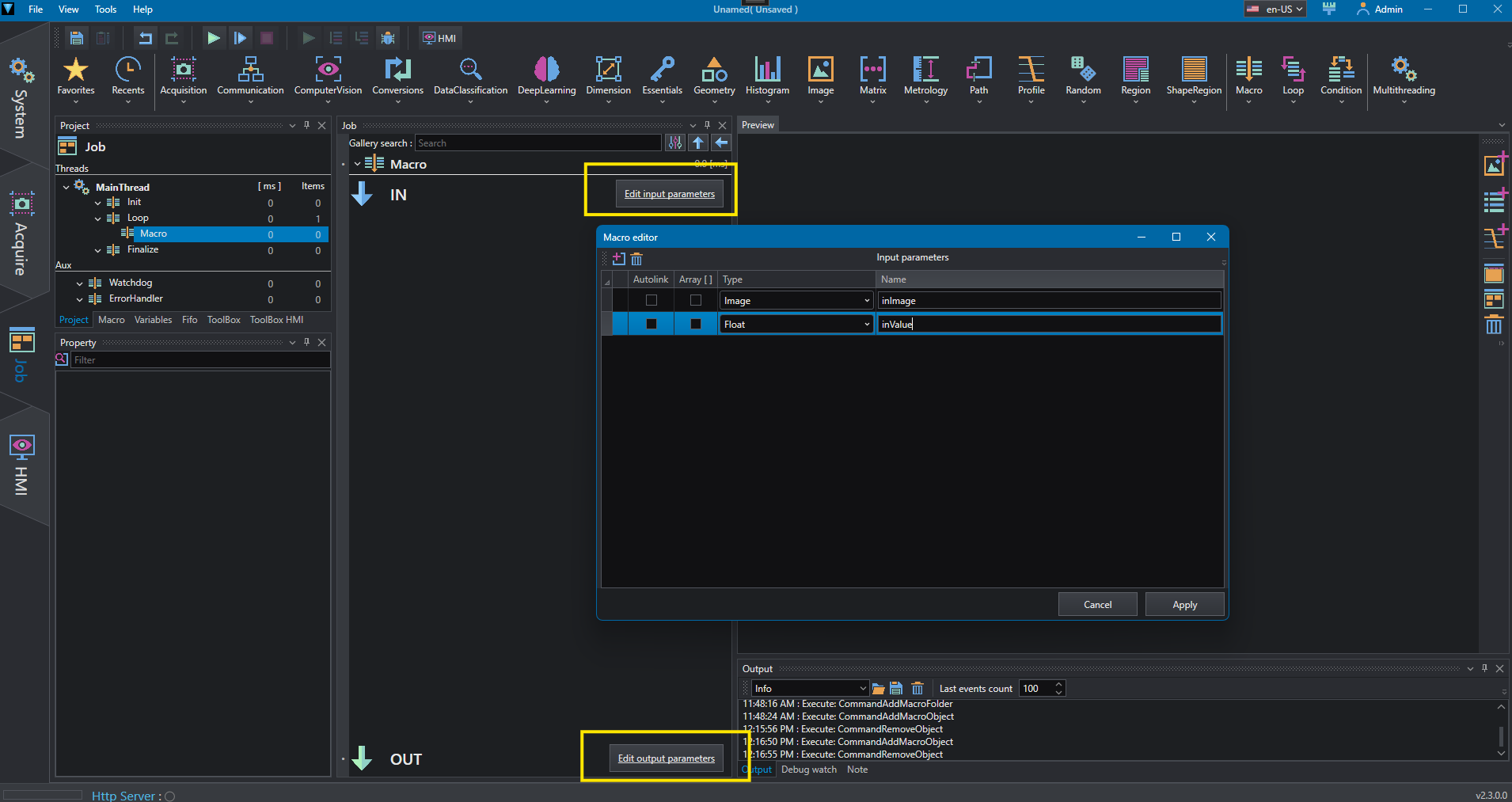
When inside a macro, input and output sections appear at top and bottom of the panel to allow user to define parameters for current macro. Click on Edit input/output parameters to edit them.
Note
Since Actions don't allow in/out parameters definition, during Action editing these sections are not available.
Parameters are then available from calling tools in the Property inspector panel.
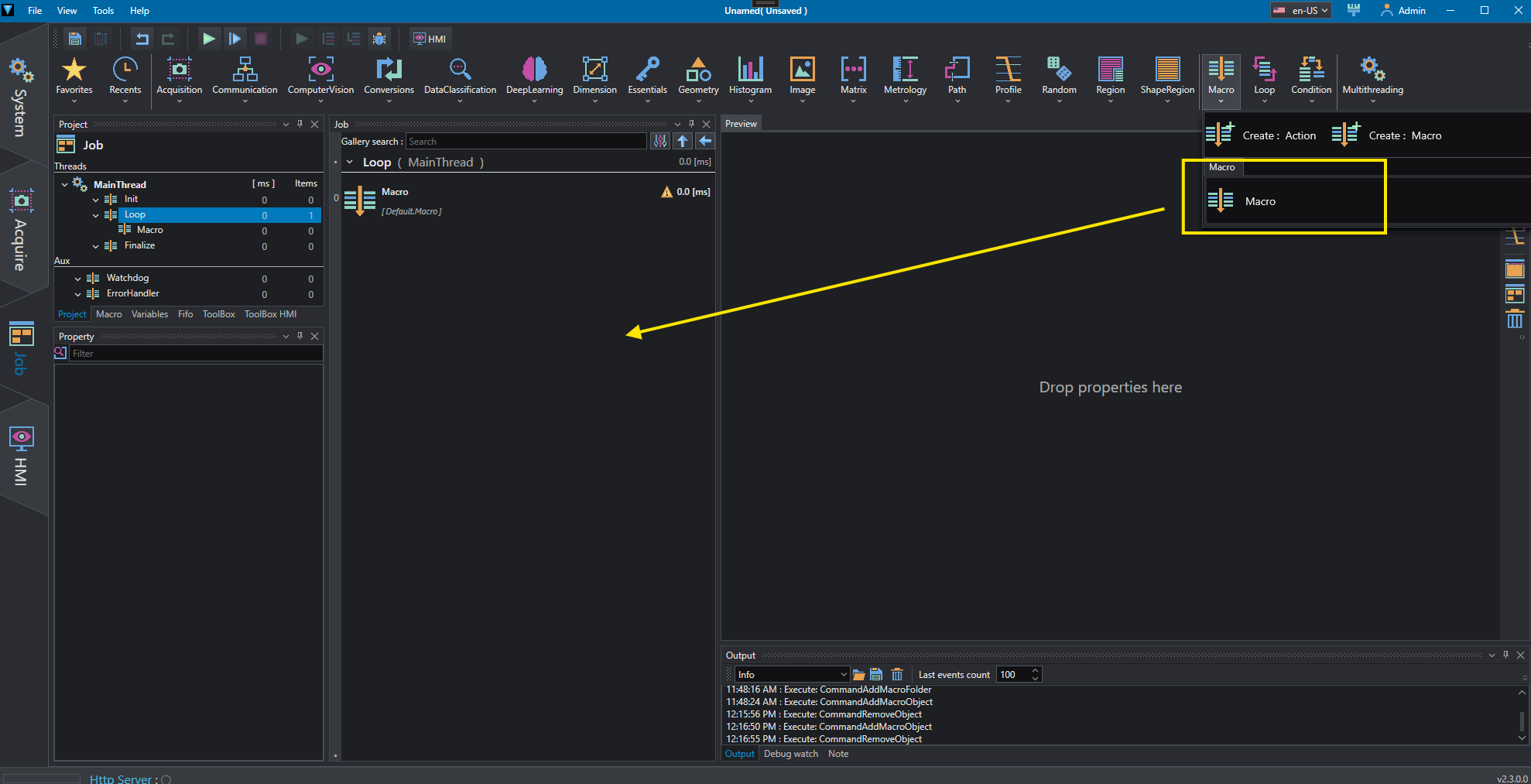
The created macro is now available in the project and can be instanced the desired amount of times by dragging and dropping it from the Macros panel or from the toolbar.
Macro example
After creating a program that returns the area of a region, I want to create a macro that checks if the area is bigger than 1000. If it is, the macro must return the square root of the area, otherwise it must return 1000.
-
Click on
Macroon the toolbar and selectCreate : Macro. The macro will be created and added to the Job list.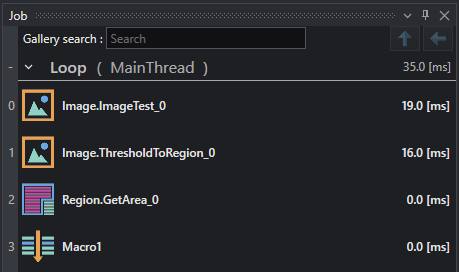
-
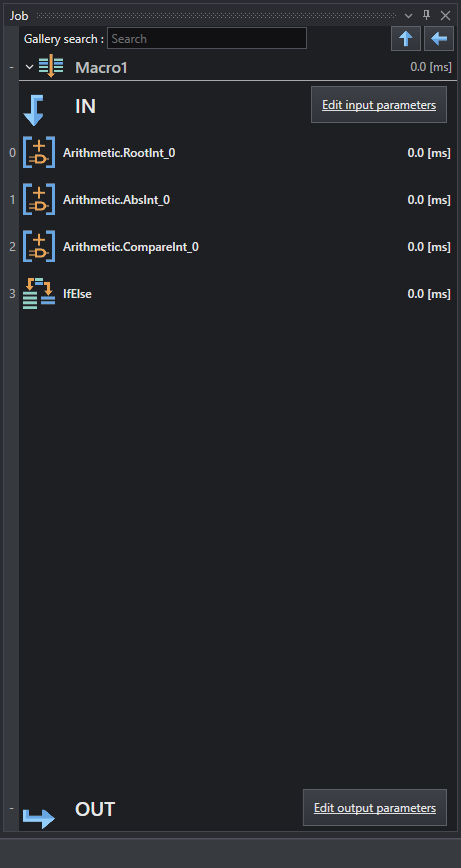
Double click on the newly created macro instance to edit it.
-
Click on
Edit input parametersand add an Int property. This will be used as the input parameter of the macro.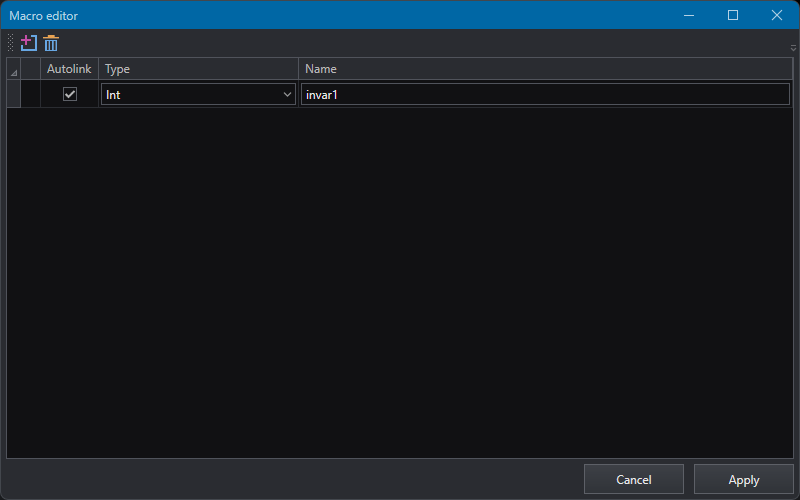
-
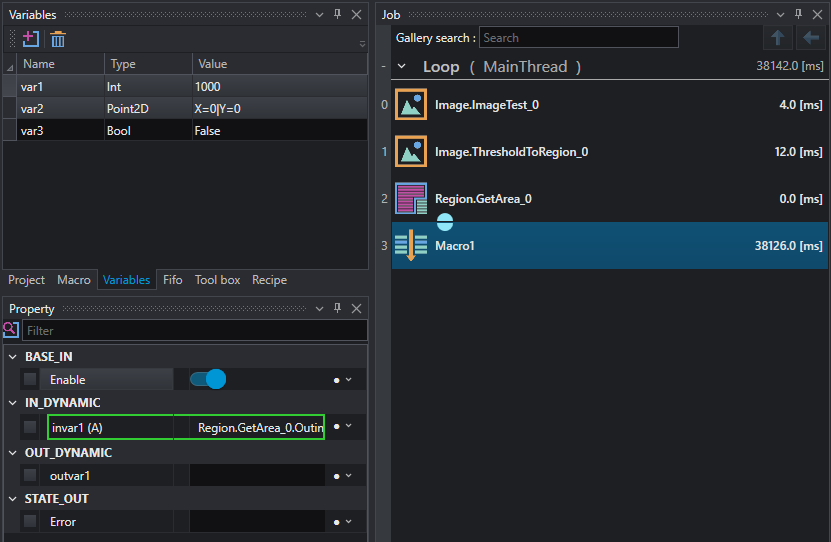
Navigate up a level in the Job list and link the property just created to the output computed by the previous tool (area).
This way the area value calculated by GetArea will be passed as a parameter to the macro.
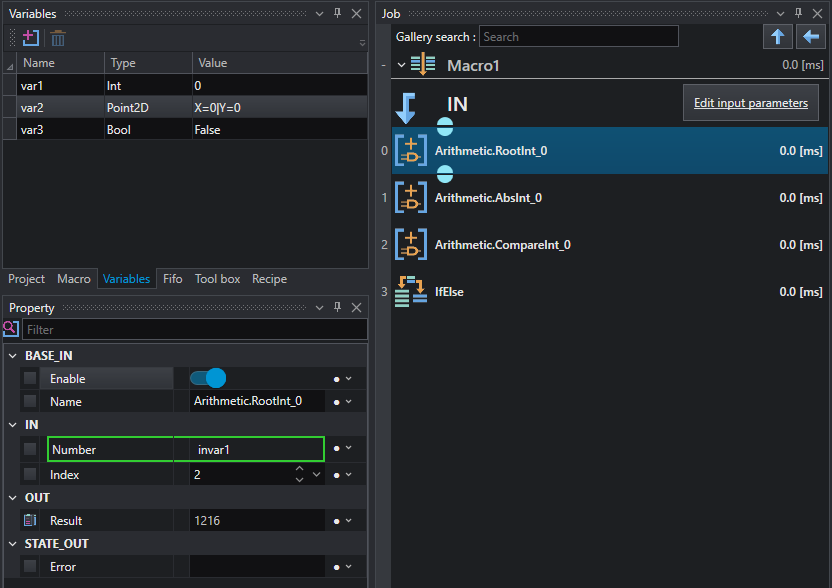
Similarly, returning inside the macro, the parameter is passed to the first internal tool (RootInt). At this point we want to execute two different sets of tools, the IfElse statement can help us. Before that we need to use a tool that outputs a boolean value (true/false).
In this example we used the Compare function to compare the result of the previous tool with a constant value (2000). Open Macros/Condition tool and select Create:IfElse.
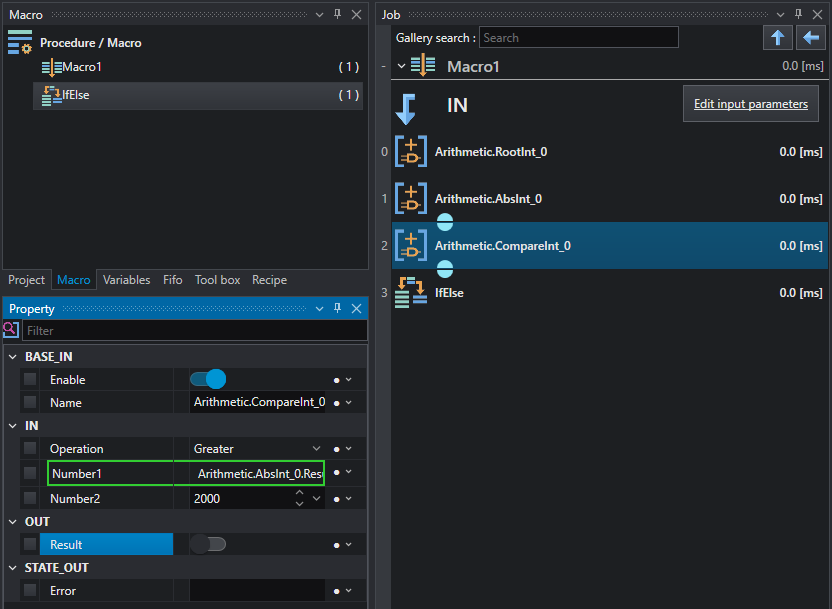
As you can see from the property and the graphic icons, this instruction is linked both to AbsInt from which it takes the input value and to CompareInt, whose result (true/false) will decide which branch of IfElse will be executed, IfElse-True or IfElse-False. The same IfElse is linked in output back to main loop, with OUT passing the outvar parameter created in the same way as invar with Edit output parameters.
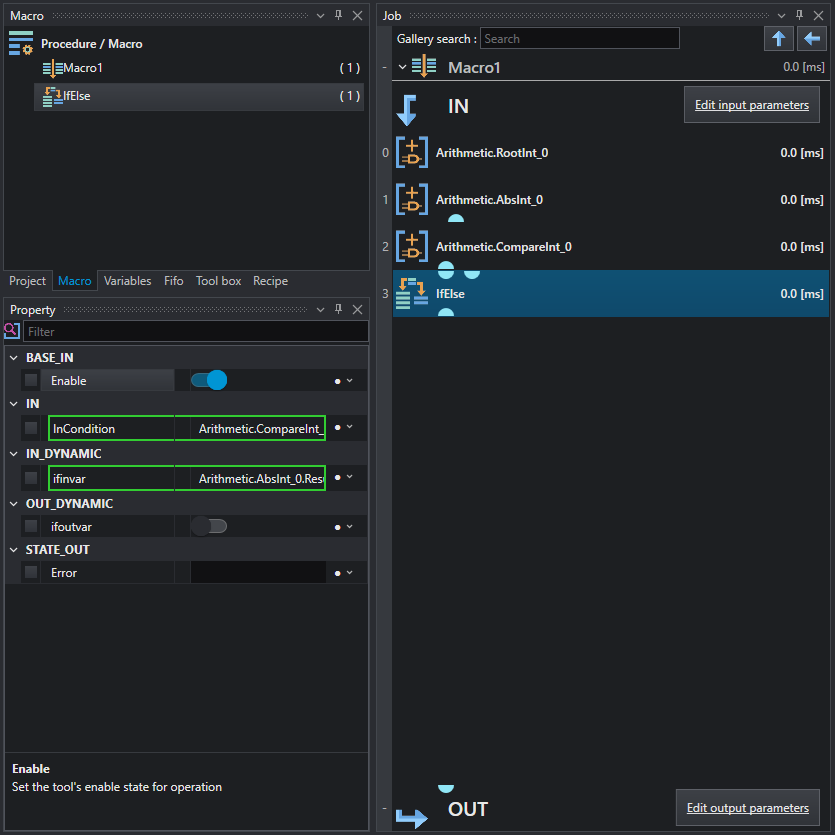
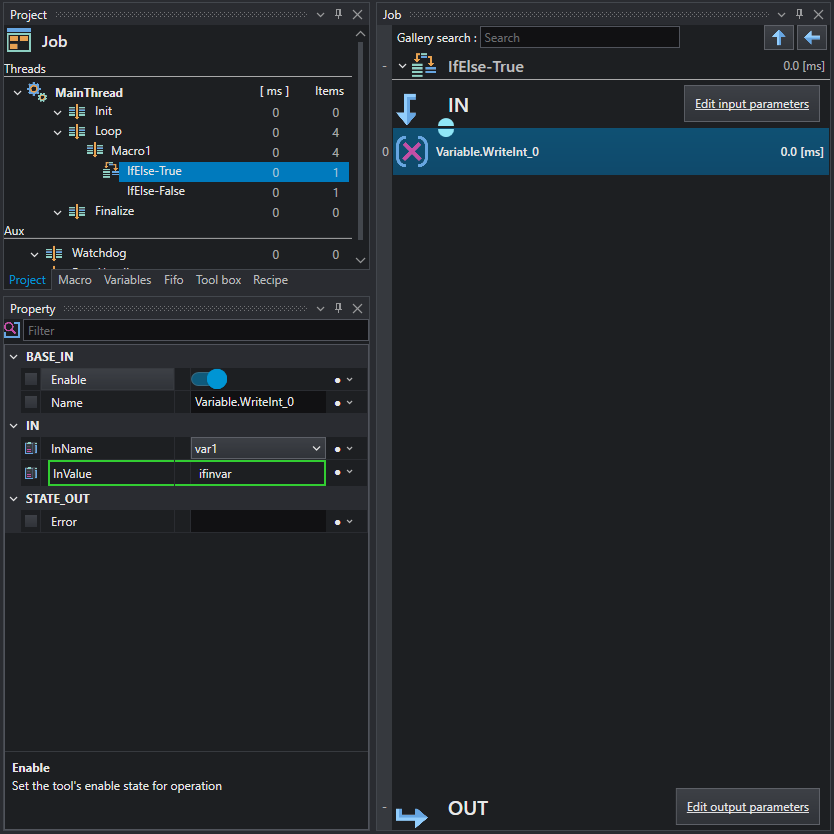
In the Project tab you can open IfElse-True or IfElse-False and add the remaining tools. In this case if the result is true AbsInt is copied into a variable var1
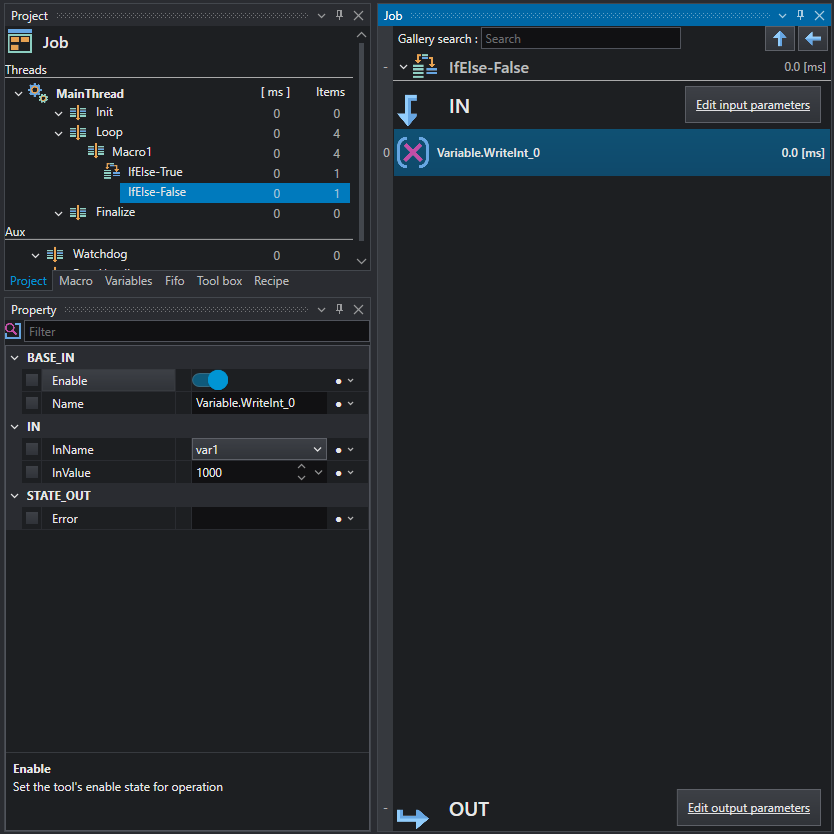
If the result is false a fixed value of 1000 is copied into var1.
The macro offers the great opportunity to be used multiple times simplifying the program and the reading of it. To copy the macro multiple times you can drag it from the macro tab or from the list in the toolbar, to the destination job.